

A few years ago, we wrote here about problems caused by poor GNSS data or data discrepancies. Today, we’ll focus on what to do when Locus Map can’t determine your location at all or loses it, especially when you turn off your phone’s screen.
Locus Map, as an app for map orientation and outdoor navigation, naturally relies on location data provided by your smartphone. The phone determines your location primarily using a GNSS chip, which calculates it from satellite data—today, in addition to the U.S. GPS system, it commonly uses the European Galileo, Russian GLONASS, or Chinese BeiDou systems. In areas where satellite signal reception is weak—in urban areas, inside buildings, or in deep valleys—the phone estimates your location based on nearby cell towers and Wi-Fi networks, as well as data from other sensors, such as an accelerometer, gyroscope, or magnetometer. If Locus Map does not have access to this data, it cannot display your location on the map.
Under normal circumstances, Locus Map determines your location immediately after the app starts. If Locus Map does not have access to location data, this will not happen. In that case, follow these steps:
Enable access to GNSS data in Locus Map
Tap the GNSS indicator—if it’s white, location services are turned off within the app:

Tap the skyplot or the button below it:
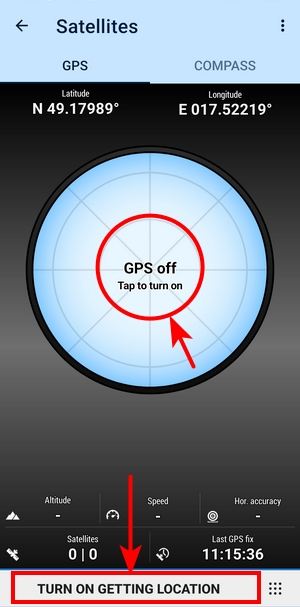
If the phone’s GNSS is turned on, Locus Map will display your location within a few seconds. Once the location is locked in, the GNSS indicator lights up green.
Turn on GNSS on your phone
If the GNSS indicator is orange and the map centering and rotation button displays a red settings circle, the app will notify you that the GNSS module on your phone is turned off.
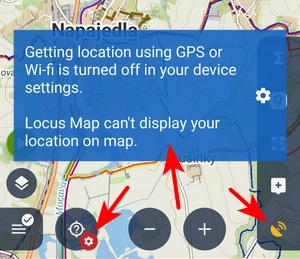
Go to your phone’s settings (usually by swiping down from the top) and turn on location services:

Allow Locus Map to access your location
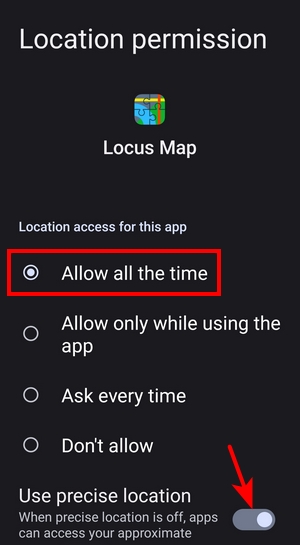
It’s possible that after installing the app, you overlooked the permission to access your precise location, or you accidentally tapped the wrong option. In that case, the GNSS indicator will turn white again. When you tap it or the app’s centering button, a notification will appear stating that location access is disallowed:

In that case, go to your phone’s settings, then to the Apps & Permissions section (on some phones, simply press and hold the Locus Map icon, then tap “App Info”). We recommend enabling access to your precise location “all the time”—this will help you avoid any potential location issues when Locus Map is running in the background.
Great! Locus Map will now determine your location immediately after launching, and you can set out on a hike or bike ride. Turn on track recording or voice navigation, and turn off the screen to conserve battery life. Sometimes, however, Locus Map loses its location again until you turn the screen back on. Instead of a detailed track record, you’ll see only straight lines on the map connecting the places where you had the screen turned on. That can really ruin your good mood after a trip.
The culprit is a problem that apps have been dealing with since around Android version 6, known as “battery optimization”. This feature tries to squeeze the most out of the phone’s battery, but unfortunately, it often comes at the expense of the usability of apps running in the background.
Exclude Locus Map from battery optimization
Battery optimization settings vary slightly by manufacturer. On most phones, simply press and hold the app icon, then go to “App Info” to access the battery saver settings. There, remove Locus Map from the restrictions:
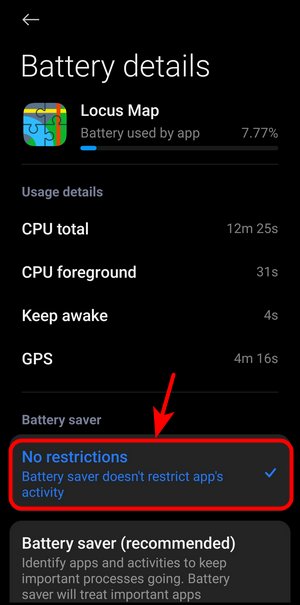
Unfortunately, many manufacturers have implemented various “tweaks” that make it difficult to prevent Locus Map from being killed by the system. A great source of information on how to do this is the website Dontkillmyapp.com, where you can find specific instructions for each brand.
Locus Map can detect when it has not been excluded from optimization, which could cause it to malfunction. It displays a warning directly in the track recording panel:
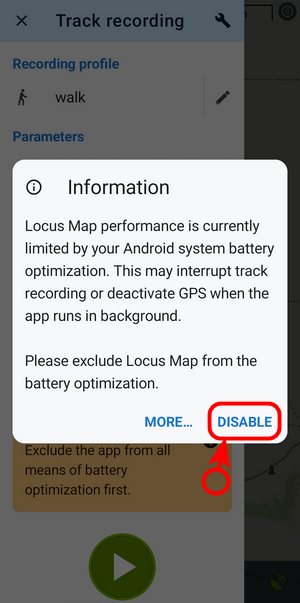
Click the question mark and then “Turn Off” to go directly to the battery saver settings.
More Tips
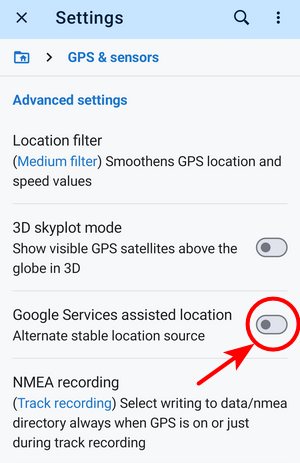
The “Fused location” feature, part of Google’s services, integrates data from GNSS, mobile networks, Wi-Fi, and motion sensors. On some phones, this feature may malfunction when Locus Map is running in the background during track recording or navigation. If this happens, you can disable the feature in Locus settings:
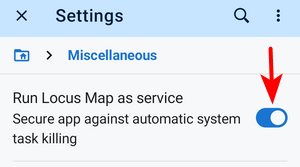
The last option to prevent the system from closing the app is to run Locus Map as a service—the operating system then treats the app differently and doesn’t assign it such a low priority when conserving battery power. You can find this option in the Locus settings:
Well, if the built-in GNSS isn’t enough for you, Locus Map offers the option to connect an external unit via Bluetooth or USB. However, that goes beyond typical use cases for hiking or biking, for which the measures mentioned above should be sufficient.
androidbattery optimizationbattery saverGNSShow tolocationno GPS


11 Comments
Zabudli ste spomenúť, že niektorí výrobcovia idú až tak ďaleko (Realme 8, Android 13), že aplikujú úsporný režim aj na samotný systém GNSS v telefóne. Nepomôže ani vypnutie Locusu z optimalizácie, ani beh na pozadí, ani zapnutie Locusu ako systémovej služby. Jednoducho ak systém zistí, že GNSS beží na pozadí, vypne ho po určitom čase. Približne 30 minút, niekedy viac niekedy menej. A je to závislé na senzore pohybu. Ak sa telefón nehýbe , alebo kráčaš pomaly, telefón usúdi, že stojíš, a vypne GNSS na pozadí aj pri aktívnom zázname a aktívnom pohybe. Nie je to vôbec chyba Locusu. Ak prebieha súčasne záznam v Locuse a tiež napríklad v aplikácii Mapy.com, v zázname v oboch aplikáciách sú rovnaké ,,priame čiary,, kedy systém vypol GNSS. Nepomôže žiadna aplikácia na udržanie GNSS , ani GPS locker.
Bojujem s tým roky. A vzdal som to.
Je to hanba výrobcu konkrétneho telefónu. V mojom prípade Realme 8. Už nikdy viac Realme. Je otázne, ktorý telefón a výrobca s tým problém zaručene nemá... Ale bolo by vhodné v článku spomenúť aj tento problém. A podľa mňa je to veľmi rozšírený problém.
Huawei p20 pro ani teraz Honor magic5 pro s tým nemajú problém. Nastavím výnimky a ešte sa mi nestalo že by som mal rovnú čiaru. A to nevypínam záznam ani v budove, drží aj v hustom lese.
Stávalo se mi to i na nově pořízeném Samsung S24FE - po vypnutí displeje a bez pohybu více jak pár minut se snímání polohy deaktivovalo jak v Locusu, tak v ostatních trackovacích aplikacích. Abych to znovu rozeběhl, musel jsem vypnout a zapnout GPS. To znovu donutilo systém začít načítat reálná GPS data.
Po dlouhých bojích se toto stupidní chování podařilo nějak eliminovat. Bohužel už dnes nevím jak, protože pokusů bylo mnoho a nakonec něco zabralo.
Dobrý den, byla to chyba přímo toho modelu telefonu (docela dost jsme si s tím užili od našich uživatelů… :). Samsung byl pak nucen vydat nějakou záplatu, která to vyřešila.
Dobrý den, děkujeme za zpětnou vazbu. Popravdě, s tímto se setkáváme poprvé; žádný z uživatelů nám tuto variantu nehlásil, a proto tato možnost v článku není zmíněna.
S tímhle taky válčím delší dobu. Mám Xiaomi řekni note 13 Pro. Telefon se choval přesně jak píšeš, pro fixaci jsem používal GPS Locker. Zkusil jsem odinstalovat GPS locker a zatím mi GPS signál drží samotná aplikace. Zatím neznám vyzkoušeno vypnutí na déle než 30 minut. Mám takové podezření na aplikaci GPS locker, ale kdo ví....
Why Strava can record properly when running in the backgroud with location permision "only while using the app", but Locus can't? Locus must have permission to work "all the time". This means that I got notification from my phone, that app actually uses my location when I am home and not recording anything. Privacy concerns...
I agree with you.I think that more work should be donez în this direction from developers
Hi, if you only use track recording as Strava does, the option "only while using the app" is also sufficient for Locus Map. But if you navigate, guide to a destination, use the point alert feature or live tracking, we recommend the "all the time" option. If none of these features are active, Locus Map does not use the location. "All the time" is only a system permission, not a status of the app. You can secure this in the Locus Map settings > GPS&sensors > "Disable when app is hidden" - turn this on so the GNSS is off when the app is in the background and no features need location.
Level Trsport
Zajímavé.
Na mém Xiaomi Mi15 se mi GPS poloha ztrácí při vypnutí dispeje. Pokud ale běží záznam trasy nebo navigace/navádění tak se GPS poloha neztrácí. Ale pokud mám zapnutou pouze aplikaci a mapu tak vždy po zapnutí displeje musím cca 3 sekundy čekat na fix.
Docela otravné.
Myslím že jsem prošel všechny možnosti a nic co by zabralo.
Radek H.